Album cover art ideas: from a prompt to a finished cover.
Start with the feeling of the song and one image that can carry it. A useful cover idea gives you something specific to make, choose and refine, instead of a long list of unrelated effects.
AI generation is rolling out. Your account shows current availability and allowance before you generate.
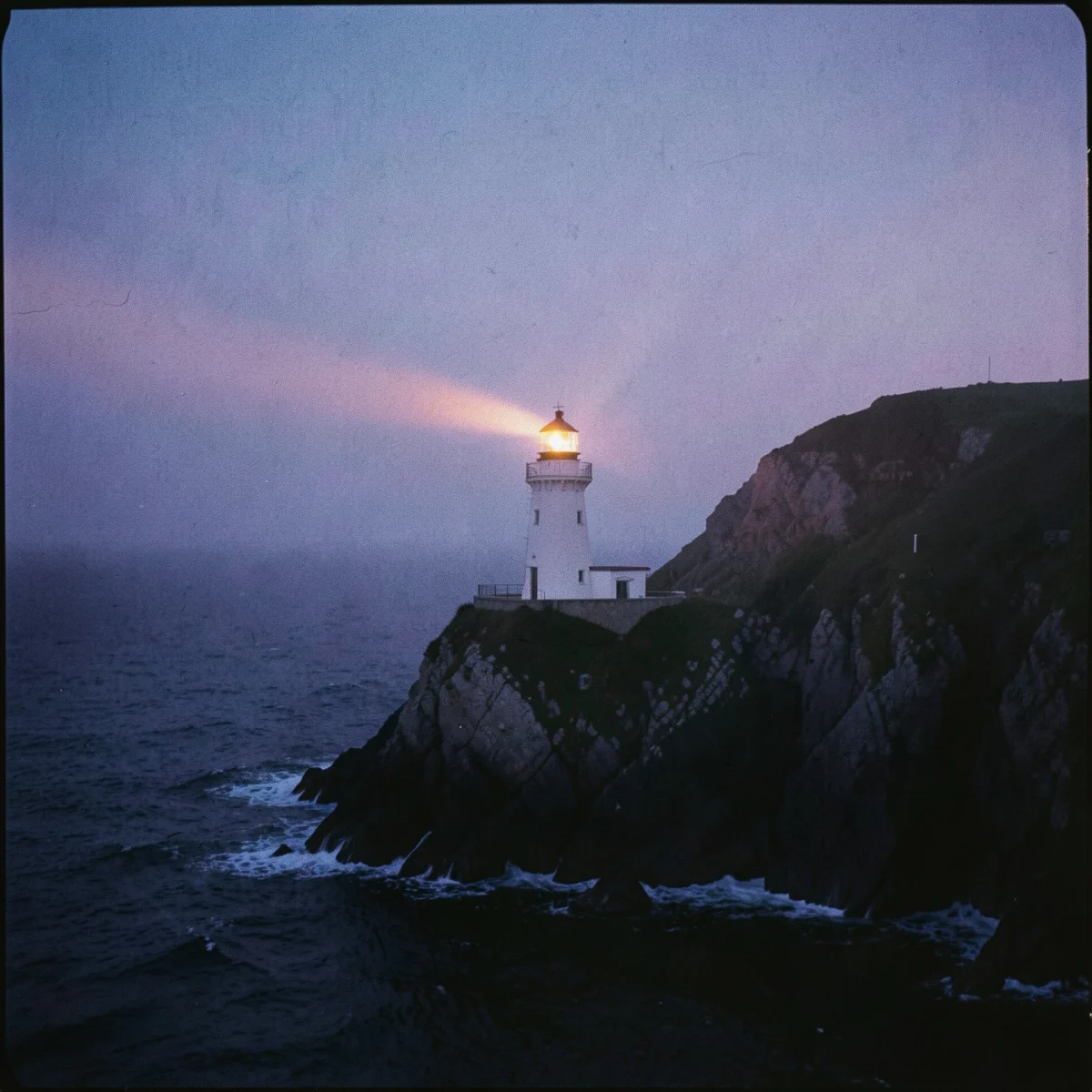
Give the song a visual starting point
Write a short description of the record’s mood, then pick a subject that fits it. A lonely drive might suggest an empty highway at night. A restless song could use a bright, crowded room. Keep the image connected to the music without trying to illustrate every lyric.
Choose an image style separately from the subject: a photograph, a painted scene or a graphic treatment can each tell a different version of the same idea. The studio gives you style, mood and colour choices so you can make those decisions deliberately.
Describe what should be in the picture
Use the optional subject field for the scene or object. A short, concrete description is easier to revise than a paragraph packed with effects. Let the style and mood controls carry those choices. These are example starting ideas, not prompts used to create the lighthouse image above:
- “An empty coastal road after sunset, headlights disappearing around a bend.”
- “A single red chair in a quiet rehearsal room.”
- “A small house surrounded by winter trees, one lit window.”
Avoid asking the image to draw your title or artist name. In the studio, those come from the song and are added as a separate type layer after you choose the artwork. Leave a calm area in the composition where the letters can sit.
When your account has generation access, start with a style and a simple subject, then review the returned options. If an image has the right idea but the wrong mood, change that choice before generating another round. Check your remaining allowance in the editor first.
Choose the image before adding the type
Look for a clear focal point and a composition that still reads when reduced to a thumbnail. Check faces, hands, instruments and background details closely. Choose the image for the record, rather than for how many details it contains.
Use the title and artist layout controls to place the text at the top, bottom or centre, or leave the art without type. Try light and dark ink against the image. Reduce the preview size and check the title again: if it disappears, adjust the layout or choose an image with more quiet space.
Keep the title and artist spelling consistent with the release details. Save the selected cover to the song, and keep a download of the version you intend to deliver.
Check the file against your distributor’s requirements
The studio downloads PNG or JPG at 1920 × 1920 pixels. It also offers the artwork alone as JPG. The saved song cover is a separate 1024 × 1024 PNG, so use the download controls for the larger file.
Spotify’s cover art requirements call for square artwork, the highest available resolution within its accepted range and an sRGB colour space. Spotify also says not to upscale images. Your distributor may ask for a different minimum size or file preparation; check its current requirements before delivery.
If the distributor requires a larger image than the studio makes, use another suitable source or commission artwork at the required resolution. Enlarging the download does not add detail.
Review the full-size file and a small thumbnail, check the spelling, and confirm that the image and any added material are suitable for your release. Record the final file alongside the audio and release details so the wrong draft does not get uploaded later.